Tools and MCP servers
A Tool is something an agent can call: an HTTP API, a function on an MCP server, another agent or team, or a built-in like terminate. You create Tool resources (or let an MCP server create them for you), then reference them from an agent’s spec.tools. The full schema reference lives at Reference → Tools. This page walks you through the tool types, creating them from the dashboard or kubectl, and attaching them to agents.
Tool types
| Type | What it calls | How it’s created |
|---|---|---|
http | An HTTP/REST endpoint, with the LLM filling URL/body parameters | You author it. |
mcp | A function exposed by an MCP server | Auto-created by the MCP server controller — you don’t hand-write these. |
agent | Another agent, called as a tool | You author it (wraps an existing Agent). |
team | A team, called as a tool | You author it (wraps an existing Team). |
builtin | A system function (terminate, noop) | Auto-seeded by the install; you reference it by name. |
Create a tool
Via Dashboard
- Launch the dashboard:
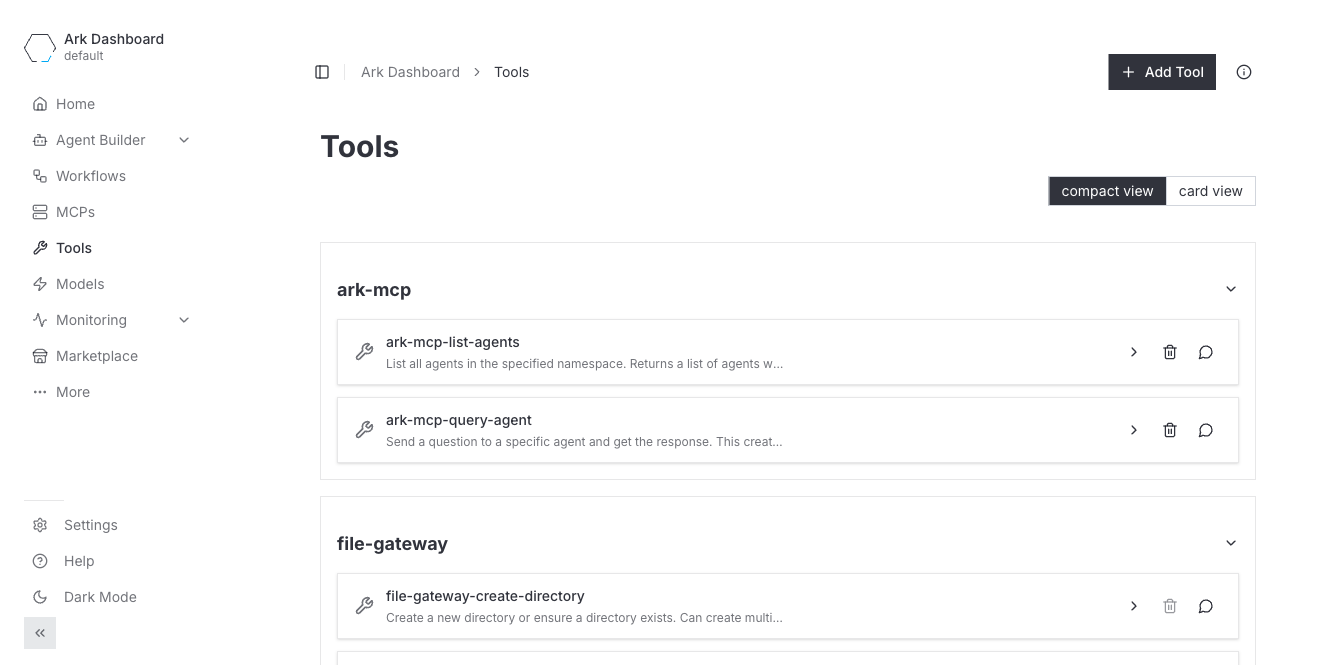
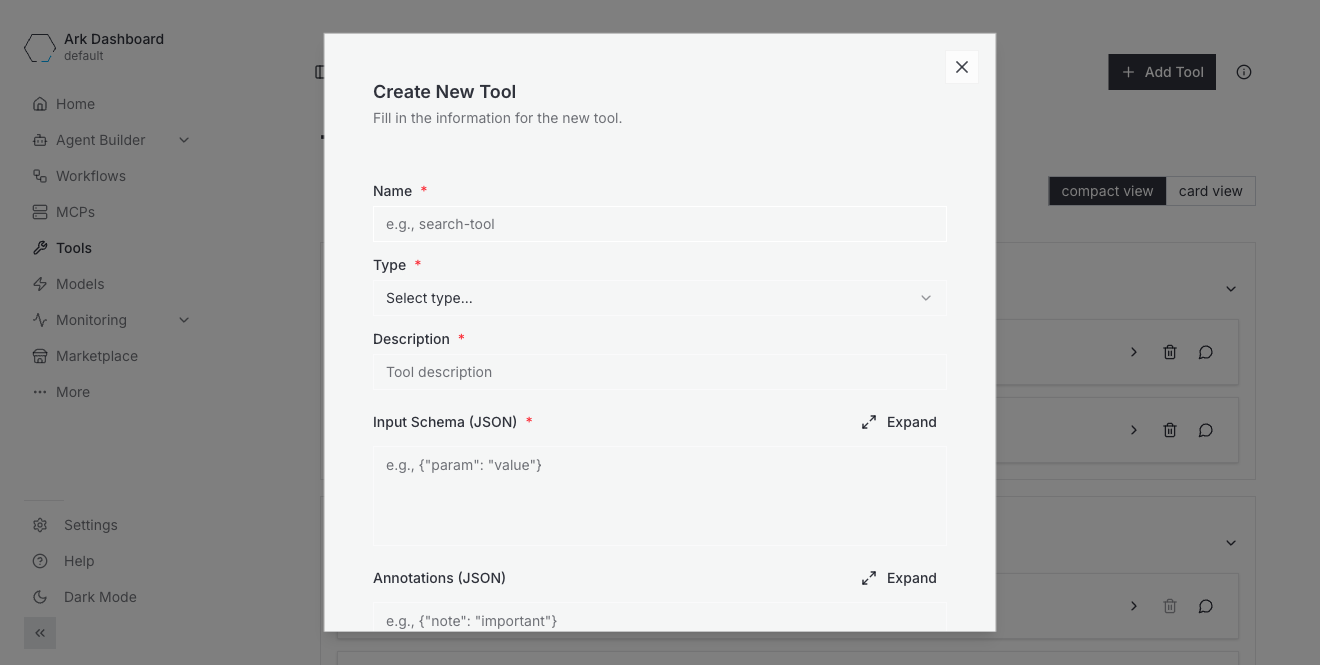
ark dashboard. - Go to Tools in the left nav and click Add Tool.
- Fill the form:
| Field | Notes |
|---|---|
| Name | Required. Lowercase, k8s name rules. |
| Type | HTTP, MCP, Agent, or Team. (Built-in tools aren’t created here — they ship with the install.) |
| Description | What the tool does. The LLM reads this to decide when to call it — keep it task-oriented. |
| Input Schema (JSON) | A JSON Schema describing the arguments the LLM must supply. |
| Annotations (JSON) | Optional MCP-style hints (readOnlyHint, destructiveHint, title, …). |
| URL (HTTP) / Agent (Agent) / Team (Team) | Type-specific target. |
- Hit save.
Via kubectl
cat <<'EOF' | kubectl apply -f -
apiVersion: ark.mckinsey.com/v1alpha1
kind: Tool
metadata:
  name: get-coordinates
spec:
  type: http
  description: "Returns coordinates for the given city name"
  inputSchema:
    type: object
    properties:
      city:
        type: string
        description: City name to look up
    required: ["city"]
  http:
    url: https://geocoding-api.open-meteo.com/v1/search?name={city}&count=1
    method: GET
    timeout: 30s
EOF

kubectl get tool get-coordinates -o jsonpath='{.status.state}'   # Ready
A valid tool reports status.state: Ready with message Tool configuration is valid. The admission webhook checks the inputSchema is valid JSON Schema and that the type-specific block is present.
HTTP tools
HTTP tools are the workhorse — they turn any REST endpoint into something an agent can call. Two kinds of templating are involved, and they use different syntax:
- URL parameters use single braces
{name}and are substituted from the tool-call arguments (URL-encoded). - Body templates use Go template syntax
{{.input.name}}for arguments and{{.name}}forbodyParameters.
apiVersion: ark.mckinsey.com/v1alpha1
kind: Tool
metadata:
  name: create-user
spec:
  type: http
  description: "Creates a new user"
  inputSchema:
    type: object
    properties:
      name: { type: string }
      email: { type: string }
    required: ["name", "email"]
  http:
    url: https://api.example.com/users
    method: POST
    headers:
      - name: Content-Type
        value:
          value: application/json
      - name: Authorization
        value:
          valueFrom:
            secretKeyRef:
              name: api-secrets
              key: auth-token
    body: |
      {
        "name": "{{.input.name}}",
        "email": "{{.input.email}}",
        "org": "{{.default_org}}"
      }
    bodyParameters:
      - name: default_org
        valueFrom:
          configMapKeyRef:
            name: user-config
            key: default-organization
    timeout: 30s
bodyParameters resolve from inline value, a configMapKeyRef, or a secretKeyRef. Header values use the same value / valueFrom shape.
MCP tools (auto-created)
You don’t write mcp Tool resources by hand. Register an MCP server with an MCPServer resource and the controller connects to it, discovers the tools it advertises, and creates one Tool per function — named <mcp-server>-<tool> and labelled mcp/server: <server>.
cat <<'EOF' | kubectl apply -f -
apiVersion: ark.mckinsey.com/v1alpha1
kind: MCPServer
metadata:
  name: calculator
spec:
  address:
    value: "http://calculator.default.svc.cluster.local:8000/mcp"
  transport: http          # http (streamable) or sse
  timeout: "60s"
  description: "Arithmetic functions"
EOF

# Wait for the server, then list the tools it produced.
kubectl wait --for=condition=Available mcpserver/calculator --timeout=60s
kubectl get tools -l "mcp/server=calculator"
Deleting the MCPServer deletes the tools it created. The dashboard groups tools by MCP server, and ark tools shows that grouped view.
MCP server authentication. Static credentials go in
spec.headers(e.g. a GitHub PAT from a Secret) — see Reference → MCPServer. For per-query or per-user credentials, use overrides to inject headers at query time, targeting specific MCP servers via label selectors.
Agents and teams as tools
Wrap an existing Agent or Team as a Tool so another agent can delegate to it. The wrapped resource is invoked with a single input argument.
# Agent as a tool
apiVersion: ark.mckinsey.com/v1alpha1
kind: Tool
metadata:
  name: research-agent-tool
spec:
  type: agent
  description: "Delegate a research question to the research agent"
  inputSchema:
    type: object
    properties:
      input:
        type: string
        description: the research question
    required: ["input"]
  agent:
    name: research-agent
---
# Team as a tool
apiVersion: ark.mckinsey.com/v1alpha1
kind: Tool
metadata:
  name: review-team-tool
spec:
  type: team
  description: "Hand a document to the review team"
  inputSchema:
    type: object
    properties:
      input: { type: string }
    required: ["input"]
  team:
    name: review-team
The agent that wants to delegate then references the Tool by name (type: agent / type: team).
Built-in tools
Built-in tools map to functions implemented inside Ark. There are two: terminate (ends a conversation / team turn with a final response) and noop (does nothing — useful for testing). The ark-tenant chart seeds them as Tool resources in each tenant namespace (gated on builtinTools.create), so on a standard install they already exist and you just reference them:
kubectl get tools terminate noopspec:
tools:
- type: builtin
name: terminateThe set of built-in implementations is fixed in Ark’s code — terminate and noop are the only ones, and you reference them rather than defining new ones.
Attach a tool to an agent
Tools do nothing until an agent references them. Add entries to the agent’s spec.tools, each with a type matching the Tool’s type and the Tool’s name:
apiVersion: ark.mckinsey.com/v1alpha1
kind: Agent
metadata:
  name: geo-agent
spec:
  prompt: "Look up city coordinates with the get-coordinates tool, then report lat/long."
  tools:
    - type: http
      name: get-coordinates
    - type: builtin
      name: terminate
In the dashboard, the Create/Edit Agent form has a tool checklist grouped by source (Built-in, HTTP, MCP servers, …) — see Agents → Create an agent.
Partial tools (pre-fill parameters)
Use partial to pin some of a tool’s parameters at the agent level and hide them from the LLM, exposing only the rest. The partial.name points at the real Tool CRD; the outer name/description are what the agent sees.
spec:
  tools:
    - type: http
      name: weather-forecast            # name the agent sees
      description: "Get the latest weather forecast"
      partial:
        name: weather-api               # the real Tool CRD
        parameters:
          - name: units
            value: "metric"             # pinned, hidden from the agent
          - name: city
            value: "{{ .Query.city }}"  # sourced from a query parameter
Query a tool directly
You can invoke a tool on its own (handy for testing) by passing a JSON object matching its inputSchema:
ark query tool/get-coordinates '{"city":"Paris"}'Or via a Query resource with target.type: tool.
Inspect, list, delete
ark tools                                   # CLI list (grouped by MCP server)
kubectl get tools                           # all Tool resources
kubectl get tools -l "mcp/server=calculator"   # tools from one MCP server
kubectl describe tool get-coordinates
kubectl get tool get-coordinates -o yaml

kubectl delete tool get-coordinates
Features only available in YAML
The dashboard’s Add Tool form covers name, type (HTTP / MCP / Agent / Team), description, input schema, and annotations — plus the type-specific target (HTTP URL, or the agent/team picker). These tool features are only configurable via the Tool YAML for now:
- HTTP method, headers, body,
bodyParameters, andtimeout. The form only takes the URL (so it produces aGETwith no auth headers or body). Any POST/PUT tool, any tool that needs anAuthorizationheader or a templated body, must be authored in YAML. builtintools. The form’s type dropdown isHTTP/MCP/Agent/Teamonly. Built-in tools (terminate,noop) aren’t created from the UI — they’re seeded by the install and referenced by name.- Partial tools (
agent.spec.tools[].partial). Pre-filling/hiding tool parameters is configured on the agent in YAML, not in the tool form.
For any of these, write the Tool (or Agent) YAML directly. You can still inspect and delete the resource from the dashboard afterwards.
Troubleshooting
Tool stuck — not Ready. kubectl get tool <name> -o jsonpath='{.status.message}' shows why. Common causes: invalid inputSchema JSON, a missing type block (http/agent/team), or an agent/team reference to a resource that doesn’t exist.
Tool 'X' not found in namespace 'Y' on an agent. The agent references a tool that hasn’t been created. Apply the Tool first; for MCP tools, confirm the MCPServer is Available and produced the tool (kubectl get tools -l "mcp/server=<server>").
Agent ignores the tool. The LLM decides whether to call a tool from its description — vague descriptions get skipped. Make the description specific about when to use it.
MCP tools disappeared. They’re owned by the MCPServer — if the server goes un-Available (bad address, failed auth, network) its tools are removed. Check kubectl describe mcpserver <server>.
Next steps
- Reference → Tools — full schema for every tool type.
- Reference → MCPServer — transports, timeouts, and OAuth.
- Agents — attach tools and use partial-tool parameter injection.